


CapCut - Video Editor
3.5124.94K Reviews
App Specs
- Version
- 19.9.0
- Updated On
- License
- Free
- Downloads
- 1,000,000,000+
- Developer
- Bytedance Pte. Ltd.
- Categories
- Video Players & Editors
- Platform
- Android, iOS
Screenshots
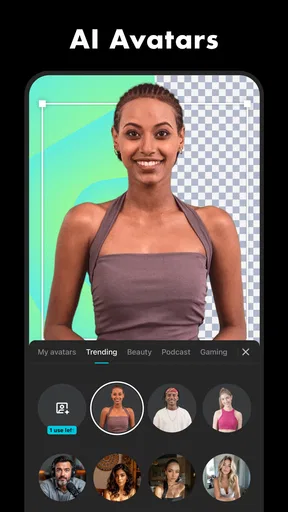
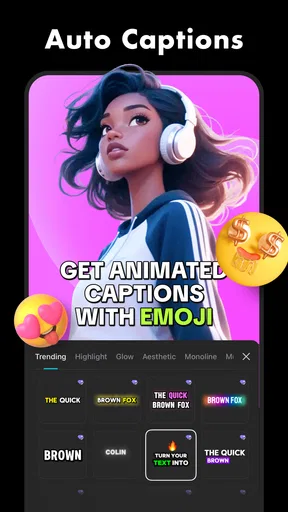
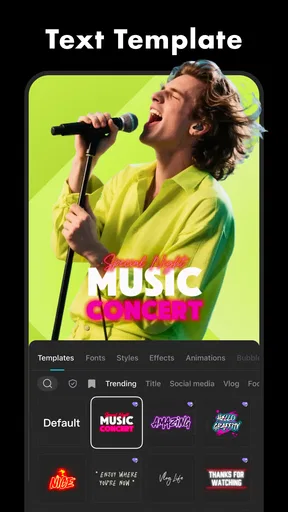
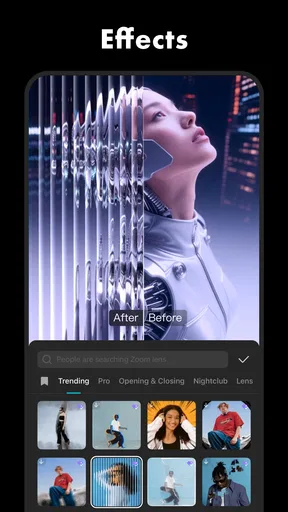
 Analysis by AppCompare
I don’t think a video editor has to be complicated to be useful. When I want to turn a few phone clips into something I’m happy to share, I want to trim the dull bits, arrange the story, and make the result feel intentional without first learning a desktop editing suite. That is the appeal of CapCut: it brings a broad set of editing tools into a mobile app, while keeping the basic idea approachable for someone starting with a blank timeline.
It is a video editing app from Bytedance Pte. Ltd., available on Android and iOS. The app is free to install, and its audience is enormous: it has more than a billion installs and an average rating of 3.5 from around 13 million ratings. That scale makes it easy to find people using it for casual clips and social posts, but it doesn’t mean every editor will enjoy its workflow. I’d judge it by the job you need done, not by its popularity alone.
What you get without paying
The distinction I’d keep in mind is simple: downloading CapCut is free, while the app also offers in-app purchases, with listed item prices ranging from $0.49 to $669.99. Those figures describe the range of purchase items, not a required entry fee or a guarantee that every useful tool costs extra. If your goal is to make a straightforward video, it makes sense to try the free access first and decide from your own editing routine whether any paid item is worth considering.
Guides and Analysis on CapCut - Video Editor
I wouldn’t treat the highest listed price as a reason to assume you need to spend that much, nor would I promise that every part of the experience is permanently available without cost. The practical question is whether the version you can use for your project has the tools you want. If you are editing occasionally, start with one small project and avoid buying anything until you know exactly what is missing for you.
Where the value shows up
The clearest value is convenience. A phone is already where many everyday clips live, and an editor that lets you combine them on that same device can save the friction of moving files to a computer for a quick result. CapCut is currently version 18.0.0, supports Android 6.0 and later, and is rated for teens. The app has been available since April 10, 2020, so it is not a brand-new experiment, though the version number and large audience should not be mistaken for a promise that every device or project will behave identically.
For a casual creator, the useful payoff is having basic cutting alongside more involved editing in one place. I can imagine using it to turn a handful of clips from a day out into a short recap, or to add text and sound when a plain sequence feels unfinished. For someone learning, the benefit is being able to try more than simple trimming without immediately changing to a different kind of tool. That range matters most when your projects are varied, not when you only need to cut one clip once in a while.
Trade-offs worth knowing before a project
A feature-rich editor can feel inviting at first and busy later. The same range that gives you room to experiment can also make it tempting to add effects, transitions, music, and text just because they are available. My practical advice is to decide what the video needs before you start decorating it: make the sequence clear first, then add only the treatments that help the viewer understand or enjoy it. That keeps a quick edit from turning into a long session of trying options without improving the story.
Worth Reading Before You Choose

Baby Panda World Brings Quick Play to Modern Phones, but Its Game Library Feels Busy

ESPN’s Live Game View Makes Following Close Games Easier

QuizzLand Review: A Good Fit for Short Trivia Breaks, Not Every Player

Basketball Stars: Multiplayer Is Fast, but Can It Recover When Matches Go Wrong?

WEBTOON Turns Phone Updates Into a Better Reading Routine

Link to Windows Runs on Shared Habits, Not Social Feeds
Phone editing also has natural limits. A small screen can make detailed timeline work less comfortable than using a larger display, particularly when a project has many layers or needs precise adjustments. If you are preparing a long, carefully structured production, or need a desktop-style workspace and close control over every edit, I would compare CapCut with a desktop editor rather than assuming a mobile app is the best fit. For quick social videos, though, keeping the work on the phone may be the more sensible trade-off.
Who I’d recommend it to
I’d suggest trying CapCut if you regularly make short videos, want more than a basic trimming tool, and are comfortable editing on a phone. It should also suit a beginner who wants room to explore without starting with a professional desktop workflow. A realistic use case is filming a family gathering, selecting the clearest moments later, trimming pauses, arranging the clips in order, and adding a short title or music to give the recap a finish. The important step is to keep the edit focused; not every moment needs an effect.
I’d be less likely to recommend it to someone who only wants to remove the start or end of a single recording. A simpler editor may be quicker for that one task. It may also be the wrong choice if you dislike working on a phone screen, prefer a minimal interface, or need a particular advanced workflow that you have already built around desktop software. The best editor is the one that fits the project you actually make, not the one with the longest feature list.
A workflow that saves time
One small habit makes a noticeable difference: choose the clips and decide their order before spending time on styling. I’d first assemble a rough sequence, watch it through, and remove repeated or weak moments. Only then would I add text, transitions, or sound. This order makes it easier to spot whether a visual flourish is helping or simply hiding a pacing problem. It is especially useful for short edits, where a few unnecessary seconds can make the whole piece feel slower.
For a video meant to be watched with the sound off, I’d make the visual sequence understandable before relying on music or effects. A short title or clear text can provide context, while restrained transitions keep the clips from competing for attention. If the sound is central to the result, I’d check the complete edit before sharing it rather than judging each addition in isolation. These are simple choices, but they help keep an accessible mobile workflow from producing an edit that feels overworked.
How it compares with other editing choices
Against a basic phone editor, CapCut’s appeal is having more room to shape a video after the initial cut. That can be valuable when you want layers, effects, transitions, text, or audio in the same project. The trade-off is that a simpler tool may be faster when all you need is a clean trim, while a desktop editor is generally a better match for a project that depends on a large workspace and detailed control. I would not switch tools just for the sake of using more features; I’d switch when the current workflow is getting in the way.
It is also worth thinking about the kind of creator you are. If you make short, occasional edits, convenience may matter more than a highly specialized setup. If you edit frequently and need consistent, precise control across complex projects, it is sensible to test your typical project before committing to a mobile-first routine. In other words, CapCut can be a capable middle ground, but it does not erase the advantages of simpler trimming apps or more expansive desktop software.
Questions I’d settle before committing
Is it free to try? Yes, the app is free to install, and in-app purchases are also offered. I would begin without paying and check whether the tools needed for a specific project are available to me. Is it suitable for a first-time editor? The accessible starting point and range of tools make it a reasonable place to learn, provided you are willing to explore the interface rather than expecting every choice to be obvious immediately.
Will it suit a longer project? That depends on how much timeline detail and screen space you want. For a modest edit made from phone clips, staying on mobile can be convenient; for a complicated production, I’d compare the experience with a desktop workflow first. Can I use it on an older Android device? It supports Android 6.0 and later, but that minimum operating-system requirement does not by itself tell you how comfortable a particular device will feel with your project. I’d test a short edit on the device I plan to use before relying on it for something important.
My take after weighing the trade-offs
For me, CapCut’s strongest case is not that everyone needs a large collection of editing tools. It is that a casual creator can start with a simple cut and then reach for more options when a video calls for them, without making a desktop editor the first step. The weaker case is for people who want a tiny, single-purpose tool or who already know they need fine-grained control on a larger screen. Those preferences are not flaws in the app; they are signs that another kind of editor may fit better.
If you are undecided, choose a small, low-stakes video and edit it from beginning to end before spending money or moving an important project into the app. That trial will tell you more than a feature list: you’ll learn whether the interface suits your habits, whether phone editing feels comfortable, and whether the free access covers the work you want to do. With a 3.5 average across a very large audience, reactions clearly vary, so I’d treat your own test as the deciding factor.
Getting Started with CapCut
First things first, downloading CapCut is a breeze. Available on both Android and iOS, it installs faster than you can say "video editing." Once you're in, the sleek and user-friendly interface greets you with a warm hug. Seriously, it’s so welcoming that even if you're new to video editing, you won't feel lost at sea.
Features That Stand Out
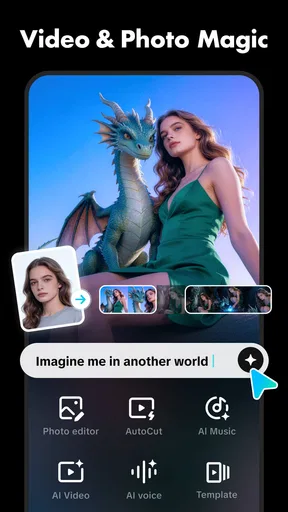
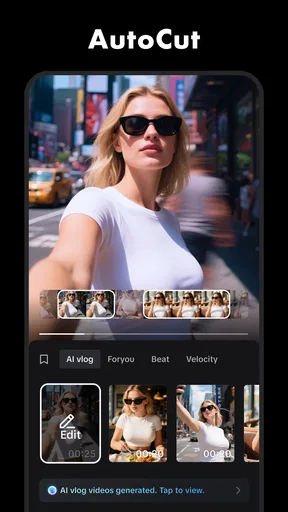
Now, let's talk features. CapCut isn't your average video editor. It comes packed with a boatload of tools that make editing a joy. From basic trimming and cutting to more advanced features like multi-layer editing, this app has got you covered. I was particularly blown away by the ease of applying effects and transitions. A few taps, and your video looks like a professional masterpiece.
One of my favorite features has to be the extensive library of music and sound effects. Whether you're looking to add a dramatic flair or just some background tunes, CapCut's got it all. And for those who love adding text, the selection of fonts and styles is just delightful.
Why It’s a Game Changer
So, what makes CapCut stand out from the crowd? For me, it’s the combination of simplicity and power. It’s rare to find an app that caters to both beginners and seasoned editors without compromising on quality. Plus, it’s free! Yep, you heard that right. All these features without burning a hole in your pocket.
Another thing worth mentioning is the app's commitment to regular updates. The developers are constantly adding new features and improving the app's performance. It’s clear they’re listening to user feedback, which is always a good sign.
Wrapping It Up
In conclusion, if you're on the hunt for a robust yet easy-to-use video editing app, CapCut should definitely be on your radar. Whether you're crafting a quick Instagram story or piecing together a longer video project, this app delivers on all fronts. So go ahead, give it a whirl, and let your creativity run wild!
Ready to transform your videos? Download CapCut and start editing like a pro today!
Pros
- User-friendly interface for quick editing
- Wide range of filters and effects
- Supports HD exports without watermark
- Frequent updates with new features
- Seamless integration with TikTok
Cons
- Occasional in-app purchase prompts
- Limited advanced editing tools
- Resource-intensive on older devices
- Requires stable internet for some features
- Ads can be intrusive at times
FAQs for CapCut - Video Editor
What features does CapCut offer for video editing?
CapCut provides a wide range of features for video editing, including trimming, cutting, and merging clips. It offers advanced tools like speed control, reverse, and the ability to add effects and filters. Users can also incorporate music, text, and stickers into their videos, making it a comprehensive editing solution for both beginners and professionals.
Is CapCut free to use, and are there any in-app purchases?
CapCut is available for free on both Android and iOS platforms. While the app offers many features at no cost, there may be some premium features or additional content available through in-app purchases. However, the free version is rich in features and sufficient for most editing needs.
Can I use CapCut without an internet connection?
Yes, CapCut can be used offline for video editing. You can access and utilize most of its editing features without an internet connection. However, downloading additional content like music or effects may require an internet connection. It's advisable to download any needed resources beforehand if you plan to edit offline.
How user-friendly is CapCut for beginners?
CapCut is designed with a user-friendly interface that caters to both beginners and experienced editors. It features intuitive controls and a straightforward layout, making it easy for new users to learn and navigate. Tutorials and guides are also available within the app to assist users in getting started with video editing.
What file formats does CapCut support for export?
CapCut supports various file formats for exporting videos, including popular ones like MP4. Users can choose the resolution and aspect ratio that best fits their needs, ensuring compatibility with different platforms. The app also allows for easy sharing to social media sites directly from the export menu, simplifying the process for users.


